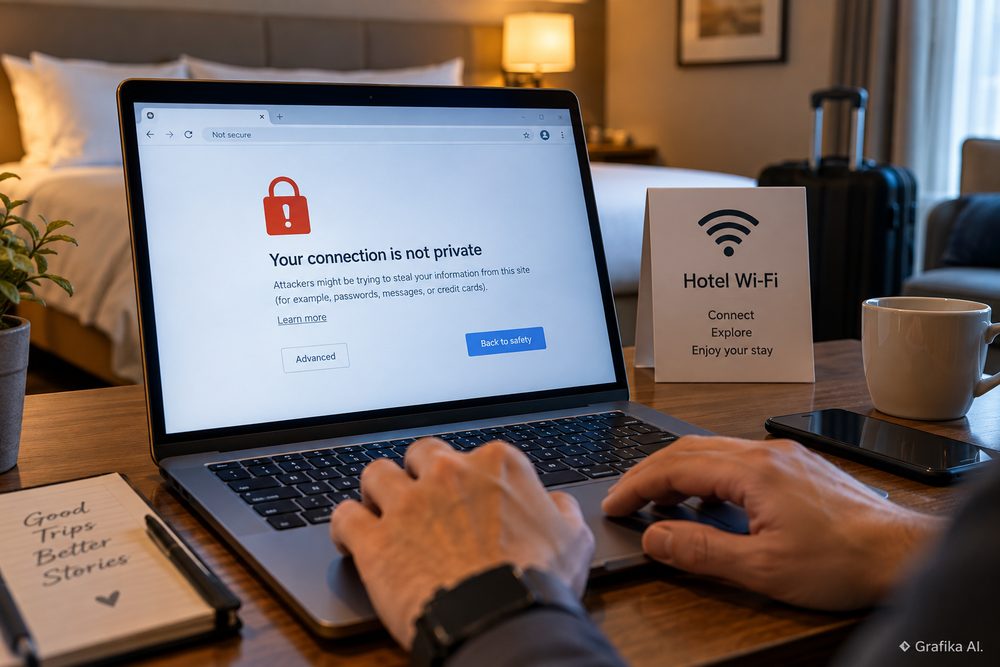
You connect to the hotel Wi-Fi, open a website that worked perfectly five minutes earlier on mobile data, and the browser suddenly reports “Your connection is not private.” The certificate may appear to belong to a completely different domain, the browser may refuse to continue, and switching to another HTTPS website produces the same result.
If the problem appears only on hotel, airport or conference Wi-Fi, the website itself is usually not the first suspect. The more likely cause is the network’s captive portal — the login or terms-and-conditions page that must be completed before the gateway allows normal internet traffic.
The confusing part is that captive portals rely on a networking trick developed in an era when ordinary HTTP traffic was common. Today, most important websites use HTTPS, browsers aggressively upgrade connections to HTTPS, and HSTS can prohibit users from bypassing certificate errors altogether. A portal trying to redirect modern encrypted traffic can therefore produce what looks like a serious TLS failure.
Sometimes it is merely an awkward login process. Sometimes it is a badly configured hotel network. And occasionally it really is a reason to disconnect.
The hotel is catching your connection before it gives you internet access
Joining a Wi-Fi network and gaining unrestricted internet access are two separate events.
A laptop or phone can successfully associate with an access point, obtain an IP address through DHCP, receive DNS servers and show a strong Wi-Fi signal while still being blocked from the public internet. The hotel gateway keeps the device in a restricted state until a condition is satisfied. Depending on the property, that may mean:
-
accepting terms of service,
-
entering a room number and surname,
-
entering a booking code or voucher,
-
providing an email address,
-
paying for premium access,
-
or simply pressing a “Connect” button.
Until then, the gateway treats the device as captive.
With traditional HTTP, this is straightforward. Imagine that the browser requests a page over port 80. Because HTTP is not encrypted, the hotel gateway can intercept the request and return an HTTP redirect such as 302 Found, sending the browser to something like the hotel’s Wi-Fi login page.
That old mechanism becomes much less convenient with HTTPS.
Modern operating systems therefore try to detect captive networks themselves. Windows uses Network Connectivity Status Indicator, or NCSI, and performs connectivity probes with predictable expected responses. Android has its own NetworkMonitor and captive portal login application. Apple devices similarly detect captive networks and can display a dedicated login window instead of waiting for the user to discover the problem in Safari.
There is also a standardized approach. RFC 8910 defines a captive-portal option that can be advertised through DHCP or IPv6 Router Advertisements. The relevant DHCP option is 114. RFC 8908 defines a Captive Portal API through which a device can learn whether it is still captive and where the user-facing portal is located.
In a well-designed deployment, all of this happens quietly: connect to Wi-Fi, receive a “Sign in to network” notification, authenticate, and continue browsing.
Hotel networks are not always well designed.
Older controllers, custom gateway configurations, overloaded access points and inconsistent portal rules can interfere with the operating system’s connectivity checks. A portal may redirect some HTTP requests but drop others. DNS may work before authentication while TCP connections do not. IPv4 may behave differently from IPv6. A hotel may also allow selected destinations before login — for example its own website or payment service — while blocking everything else.
That produces the classic symptom: Wi-Fi says connected, but the internet behaves unpredictably.
Another common complication is device identification. Captive portals frequently associate authorization with a combination of the client’s IP address, MAC address or gateway session. Modern phones and laptops use randomized or private Wi-Fi addresses to reduce tracking. That is good for privacy, but it can occasionally confuse an old portal implementation. If the network believes it is seeing a new device, it may demand authentication again even though the user completed the login earlier.
Hotels may also deliberately expire sessions after a defined period, after inactivity, when DHCP information changes or when the guest’s access entitlement ends. There is no universal hotel timeout. The important diagnostic clue is therefore not whether the portal appeared yesterday, but whether the gateway currently considers this device authenticated.
HTTPS and HSTS prevent the portal from pretending to be the website you requested
The certificate warning is not an accidental side effect of HTTPS. In many cases it shows that HTTPS is doing exactly what it was designed to do.
Suppose you request:
https://www.example.com
Before the browser can request the actual webpage, it establishes a TLS connection, normally to port 443. During that handshake, the server presents a certificate. The browser checks, among other things, whether the certificate is valid for the hostname requested and whether its certification chain leads to a trusted certificate authority.
Only after that process succeeds can normal encrypted HTTP communication take place.
That sequence matters enormously on a captive network.
With an ordinary HTTP request, the hotel gateway can answer:
“Do not open that page yet. Go to my login page instead.”
With HTTPS, it cannot simply inject an HTTP 302 response before TLS is established. The browser expects to be communicating securely with the hostname the user requested.
If a poorly configured gateway intercepts the HTTPS connection and presents its own certificate — perhaps for login.hotel.example — while the browser requested www.example.com, the hostname check fails. Depending on the exact failure and browser, the user may see errors corresponding to a certificate name mismatch, an untrusted certificate authority, an expired certificate or another TLS validation failure.
This is an important distinction. The warning does not automatically mean that the hotel is maliciously stealing passwords. A captive portal can accidentally reproduce some of the technical characteristics of a man-in-the-middle attack because both situations involve infrastructure between the user and the intended destination attempting to alter the connection.
The browser cannot safely assume that the interception is innocent.
That is where HTTP Strict Transport Security, or HSTS, becomes especially visible.
A website can send a Strict-Transport-Security response header over a valid HTTPS connection. A typical policy contains a max-age value telling the browser how many seconds it must remember to use HTTPS. A site can additionally specify includeSubDomains.
There are two important ways a browser can know that HSTS applies.
First, it may have learned the policy during an earlier valid HTTPS visit and stored it locally. Second, the domain may be included in an HSTS preload list distributed with the browser. In the second case, the protection is available even before the browser has previously visited that website.
When HSTS applies, the consequences are deliberate:
HTTP is automatically upgraded to HTTPS, and an invalid TLS certificate cannot simply be accepted by clicking through the warning.
That is why one site may behave differently from another on exactly the same hotel network. A plain HTTP destination gives the portal an opportunity to redirect the request. An HSTS-protected destination goes straight to HTTPS, where the portal cannot impersonate the requested hostname without triggering certificate validation.
Browser-level HTTPS-First or HTTPS-only features can create a similar practical problem even when HSTS itself is not involved. The browser tries the encrypted route first, while the captive portal is waiting for an interceptable HTTP request that never arrives.
This explains an otherwise strange observation: the stricter the browser’s HTTPS security, the harder it can be for an obsolete captive portal to introduce itself.
Do not solve that problem by disabling certificate validation.
Do not install a hotel-provided root certificate merely because a portal asks for one. A normal guest Wi-Fi portal should not require permanent trust in a new certificate authority on a personal laptop or phone. Installing such a certificate can give its operator the technical ability to issue certificates that your device will trust, which is far more access than is necessary simply to accept Wi-Fi terms.
Likewise, never enter banking, corporate or primary email credentials into a page reached through an unexpected certificate warning. A legitimate captive portal may ask for hotel-specific credentials, a room number, a voucher or basic registration information. It should not need the password to an unrelated internet account.
How to make the portal appear — and when to stop troubleshooting
The first objective is not to “fix HTTPS.” It is to complete the captive portal process without bypassing TLS security.
Start by checking whether the operating system already detected the portal. On Windows, look for the network sign-in notification. On Android, open the Sign in to Wi-Fi network notification if it appears. On an iPhone or iPad, reconnecting to the network from Wi-Fi settings will often trigger the captive login interface automatically.
If no login window appears, open a browser and deliberately request a plain HTTP page rather than an HTTPS website. A commonly used diagnostic address is:
http://neverssl.com
The http:// part matters. Do not merely type a familiar search-engine or news-site name, because modern browsers and those sites often move directly to HTTPS.
If the network is operating normally, the gateway can intercept the HTTP request and redirect it to its legitimate portal. Complete the hotel login there, close the captive portal window, and then retry a normal HTTPS site.
The practical troubleshooting order should be:
-
Confirm that you joined the correct SSID. Compare the network name with the information at reception, in the room documentation or in the hotel’s official app. Attackers can create lookalike SSIDs.
-
Trigger the captive portal with HTTP. Do this before changing certificates, DNS configuration or browser security settings.
-
Complete only the hotel’s normal authentication process. Check that the portal identity makes sense for the property or its Wi-Fi provider.
-
Disconnect and reconnect to Wi-Fi if the portal claims authentication succeeded but internet access remains blocked.
-
Temporarily investigate VPN, proxy or secure-DNS interference only if the portal still cannot be reached. Some captive systems do not coexist cleanly with tunnels or custom network configurations.
-
Re-enable your normal privacy protection after authentication, especially a VPN that you normally use on public networks.
-
Test two or three unrelated HTTPS sites after login.
A VPN deserves special treatment here. Starting a VPN before captive authentication sometimes fails because the gateway blocks the VPN server along with the rest of the internet. Disabling the VPN long enough to reach the portal can therefore be necessary. But that interval should be used only for portal authentication — not for checking email, logging into a bank or doing sensitive work. Once internet access is granted, reconnect the VPN.
The same logic applies to manually configured proxies and unusual DNS setups. They are secondary suspects, not the first settings to reset.
A browser certificate warning also becomes much more serious if it survives successful portal authentication.
After the portal says you are connected, an ordinary HTTPS website should once again negotiate TLS directly with its genuine server. If several unrelated HTTPS domains still return certificates belonging to the hotel, gateway, firewall or some unknown issuer, disconnect.
That is no longer a normal captive-portal introduction.
Also stop troubleshooting and move to mobile data or a trusted hotspot when:
-
the portal asks you to install a root CA certificate;
-
a certificate warning appears after successful Wi-Fi authentication;
-
unrelated HTTPS sites all show the same unexpected certificate;
-
the portal requests credentials for Google, Microsoft, Apple, a bank or another unrelated account;
-
the SSID cannot be confirmed with the hotel;
-
the browser shows a certificate whose hostname has no plausible relationship to the hotel or its network provider.
One inconvenience deserves special mention: an open hotel SSID with a login webpage is not automatically an encrypted Wi-Fi network. The portal controls access; it does not itself provide radio-layer encryption between the device and access point. HTTPS still encrypts individual web sessions, and some newer networks can use technologies such as Opportunistic Wireless Encryption, but users should not assume that a password entered into a web portal means the Wi-Fi link itself uses WPA2 or WPA3.
For routine browsing, properly validated HTTPS already provides substantial protection. For company systems, administration panels or other sensitive work, a trusted VPN or mobile connection removes another layer of uncertainty.
The priority is therefore simple: do not bypass the certificate warning first. First force the hotel’s captive portal to appear through a plain HTTP request, authenticate there, and retry HTTPS. If the certificate error remains after the network says you have internet access, treat the network — not the website — as the problem and switch connections.
FAQ: hotel Wi-Fi certificate warnings
Why does “Your connection is not private” disappear when I use mobile data?
Because mobile data does not pass through the hotel’s captive gateway. If the same HTTPS website loads normally on 4G or 5G but produces a certificate mismatch before hotel Wi-Fi authentication, the hotel network path is the strongest suspect.
Can I just press “Advanced” and continue past the certificate warning?
That is the wrong first move. On an HSTS-protected site the browser may not permit it at all. Where bypassing is technically possible, doing so removes the protection that is warning you that the server identity has not been verified. Trigger the captive portal through HTTP instead.
Why does the hotel login page sometimes open automatically?
Windows, Android, iOS and macOS perform connectivity checks designed to detect restricted networks. When the response differs from the result expected from an unrestricted internet connection, the operating system can launch or suggest a captive-portal login interface.
Why does the portal work on my phone but not my laptop?
The devices may use different captive-portal detection methods, DNS settings, VPN configurations, browser HTTPS policies or network identities. The hotel can also regard them as two separate clients and require separate authorization.
Can HSTS itself cause a bad certificate?
No. HSTS does not create the certificate problem. It prevents the browser from downgrading the connection to insecure HTTP and prevents certificate errors from being casually bypassed. The underlying problem is that the requested HTTPS connection is not reaching a server able to prove the correct identity.
Should I delete HSTS settings from my browser to make hotel Wi-Fi work?
No. Removing HSTS protection attacks the security mechanism rather than the captive-network problem. It can also expose subsequent connections to downgrade attacks. Make the captive portal appear through its intended login flow instead.
Does clearing cookies fix captive portals?
Occasionally, but it is not a sensible first step. Many captive sessions are controlled by the gateway using network-level identifiers rather than ordinary browser cookies. Reconnecting to the network and triggering an HTTP request is faster and less destructive than wiping browser data.
Is the warning proof that the hotel Wi-Fi is unsafe?
Not by itself. A badly implemented captive portal can cause a genuine certificate warning without malicious activity. What matters is what happens after portal authentication. If normal HTTPS certificates validate afterward, the problem was probably the captive state. If interception continues, disconnect.
What should I check first?
Verify the hotel’s official SSID, join it, and trigger the captive portal with an explicit plain-HTTP request. Do not change certificate settings, install a certificate or disable browser security. If HTTPS still shows an unexpected certificate after the portal confirms successful login, stop using that Wi-Fi and switch to mobile data or a trusted hotspot.